Thumbnail mode
Sniffnet provides valuable insights about your network traffic, but sometimes you just can’t
dedicate a whole screen to the application.
In such cases, you can switch the view to thumbnail mode by clicking on the dedicated icon in the app’s header.
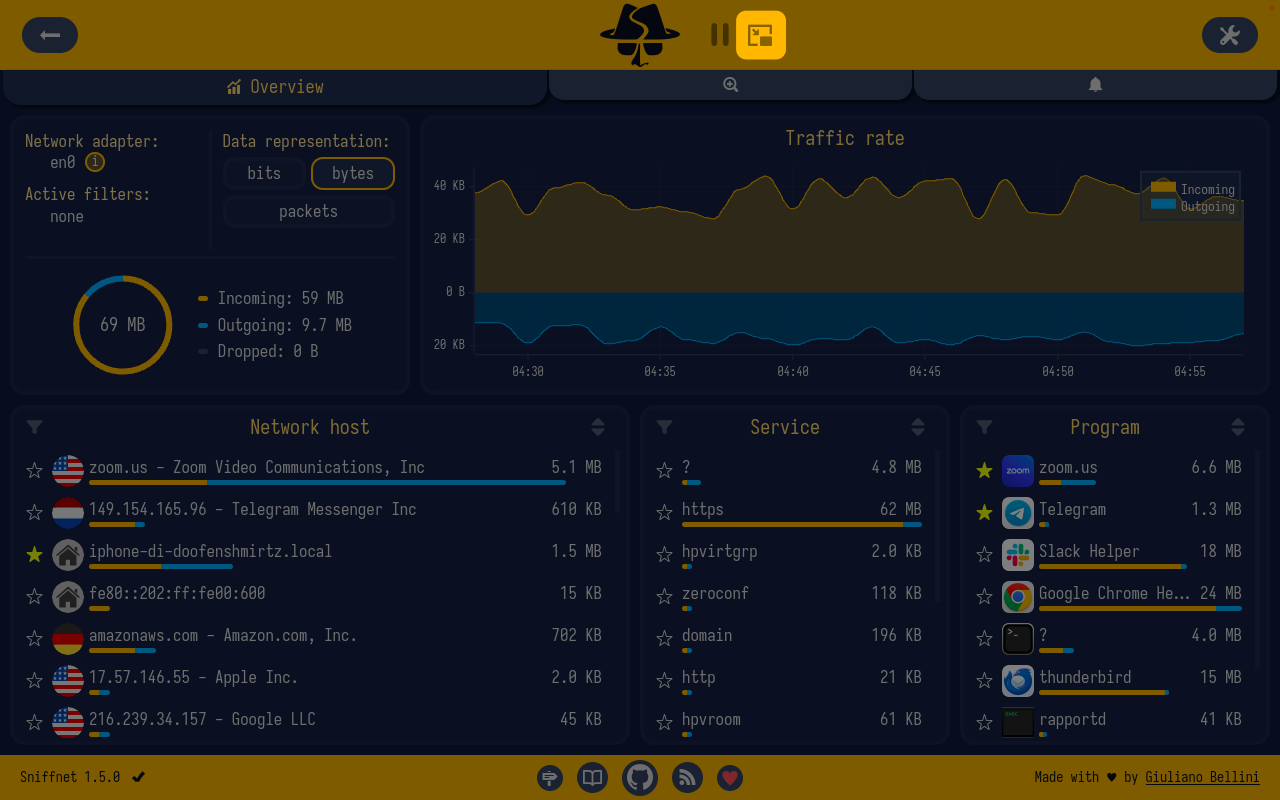
Thumbnail mode is a compact view of the app that can be moved to any corner of the screen, allowing you to keep an eye on your traffic while performing other tasks.
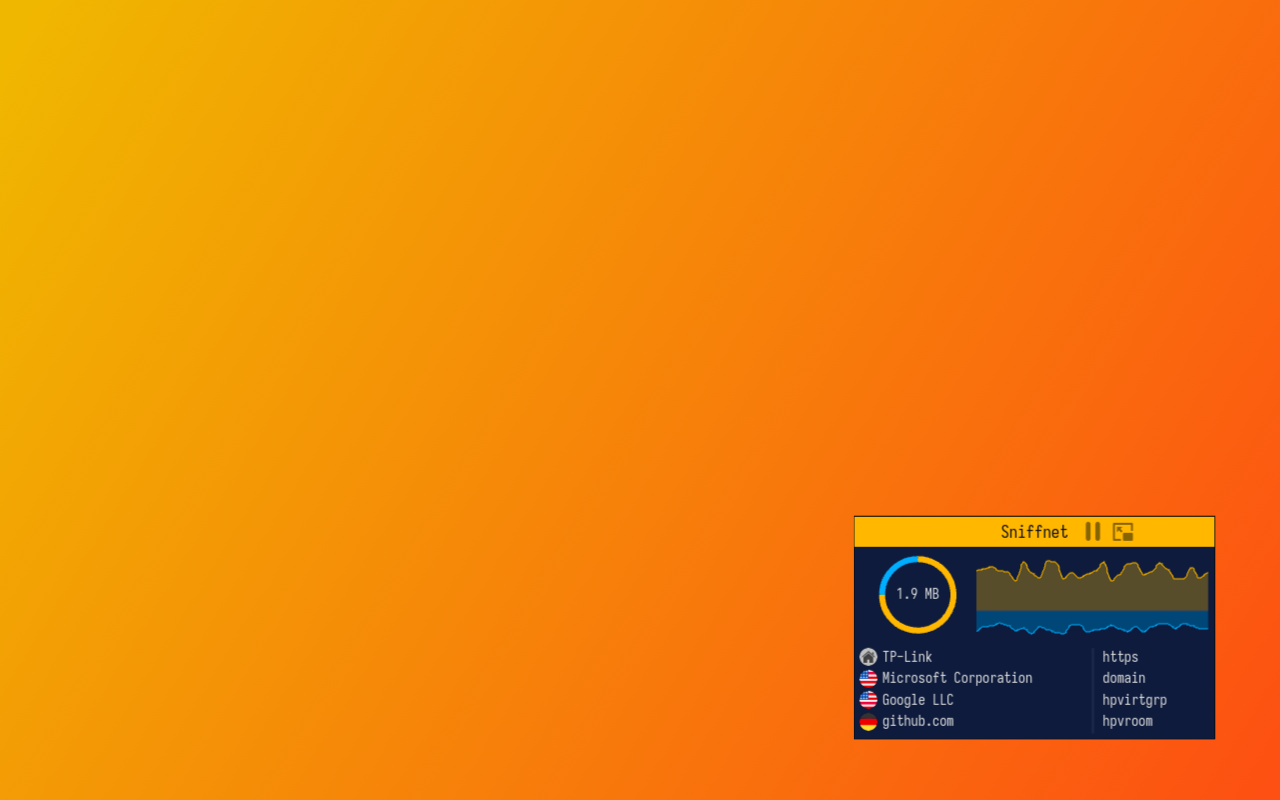
The thumbnail includes live charts about the total exchanged data and the traffic rate, similar to the ones present in the Overview page,
and some of the most recently observed network hosts and services.
You’ll continue receiving notifications even in thumbnail mode, and a badge will appear to signal the number of unread notifications.
You can switch back to the full view at any time by clicking on the expand icon in the thumbnail’s header.